
A useful accessibility audit tells you which people and tasks are affected, how to reproduce the barriers, who should fix them, and how the fixes will be verified. A score or a list of scanner warnings is only part of that work.
Use this checklist to scope an audit, choose representative tasks, combine automated and manual checks, and turn findings into work that can be retested. It is a process guide, not an exhaustive list of WCAG requirements. Primary sources were checked on October 22, 2026.
1. Define the audit before choosing a tool
Set the website or application boundary, environments, content types, critical tasks and accessibility target. Record exclusions and the reason for each. A review of public pages does not automatically cover a resident portal, checkout, document archive or embedded appointment system.
State the WCAG version and level explicitly. Agree a WCAG 2.2 AA engineering target where appropriate; an applicable policy or legal requirement may specify something else. For public entities covered by the US ADA Title II web rule, distinguish its WCAG 2.1 AA baseline from a newer engineering target. The ADA deadline guide explains that separate question.
Ask for a written test plan with:
- URLs, templates, components and important content types.
- Complete tasks, including error, empty, loading and confirmation states.
- An agreed browser, operating-system and assistive-technology support baseline, with versions.
- Automated tools, versions and rule configuration.
- Manual review methods and any testing with disabled participants.
- Deliverables, issue ownership and retest responsibilities.
W3C's WCAG-EM 2.0 methodology offers a process for setting scope, exploring a product, choosing a representative sample, evaluating it and reporting findings. It does not add requirements to WCAG.
2. Sample templates and complete journeys, not just popular URLs
For a fictional public-service site, a useful sample could include its homepage, service detail, eligibility information, search results and appointment request. Include the menu, search, form controls, dialogs and other shared components wherever they appear.
For an online store, examine product selection, variant availability, cart changes and the checkout handoff—not just a product page's initial HTML. For a nonprofit, include programs, events, donation/account flows and the formats used for important reports.
Include variations such as long titles, missing images, validation failures, empty search results, an open dialog and a confirmation after an action. Record third-party steps you could not access. Review PDFs, video and mobile applications with appropriate methods; an HTML scanner has not checked them.
WCAG-EM recommends combining structured and random samples and including complete processes. A sample cannot establish conformance for pages it does not cover. Report the tested boundary and findings; do not certify the whole site from a handful of routes. WCAG-EM sampling and conformance limits.
3. Use automation for repeatable checks
An automated scan can identify many machine-testable conditions: missing accessible names, invalid ARIA relationships, certain contrast failures, and other rule violations in the content it examined. Keep the affected selectors and evidence, not just the aggregate count.
Report violations, checks needing review, and checks that did not apply separately. A passing rule does not establish that a WCAG criterion passes, and an untested state has no result. Save the tool version, configuration, URL, state and collection time so you can repeat the check after a fix. Open menus and dialogs and trigger important states first; a scan of hidden content does not cover the interaction once it opens.
W3C explains that tools assist evaluation but cannot determine accessibility on their own. Evaluating web accessibility. Tool selection should match the technology, workflow and capabilities you actually need. Selecting evaluation tools.
What automated tools can miss
A tool may confirm that an image has an accessible name without establishing that the name communicates the image's purpose. A static scan may also miss what happens after an action: whether focus moves sensibly, whether an update is exposed, or whether someone can complete the task.
Scanners, browser extensions and AI-assisted checks have different capabilities. Avoid a universal “they catch exactly X percent” promise. For a particular run, state the configured checks and the problems that the evaluator actually observed.
4. Test the experience manually
Manual review should cover the relevant WCAG criteria across selected views and states. Organize the checks by journey and method so another reviewer can repeat them.
Keyboard and focus
Complete important tasks without a pointer. Check Tab and Shift+Tab order, native control behavior, visible focus, traps, and where focus goes after opening, closing or updating content. A button being keyboard-focusable is not enough if its action leads to an unusable state.
For example, test a form's invalid submission, error recovery and valid confirmation. Record the expected destination and actual focused element at each transition. Retest a shared menu or dialog in more than one representative context.
Screen readers and programmatic meaning
Use stated browser/screen-reader combinations to inspect names, roles, states, headings, relationships and feedback during real tasks. Compare what the interface communicates visually with what the assistive technology exposes.
DOM inspection and an accessibility-tree snapshot help diagnose issues, but they cannot show whether a screen reader announced an update correctly. Mark that check pending until it has been tested with an actual screen reader.
Zoom, reflow, contrast and non-text information
Test zoom and narrower layouts, clipping, overlap, sticky elements and text spacing where relevant. Check text and interface contrast, information conveyed only by color, and hover/focus content. Judge meaningful alternatives for images, charts and icons against their purpose and surrounding content.
For multimedia and documents in scope, include appropriate caption, transcript, structure and reading-order checks. A website crawl does not establish the accessibility of its downloadable reports.
Include people without replacing criterion review
Testing with disabled participants can reveal practical barriers and help prioritize tasks. Record what they tested and the limits of the study. One successful session cannot represent all users or establish every WCAG requirement. W3C guidance on involving users.
Timing, motion and authentication
Include time limits and timeout recovery, moving or automatically updating content, flashing, and relevant pause/stop controls. Where login, payments or sensitive transactions are in scope, review authentication barriers, repeated information entry, instructions, error prevention and recovery. Agree those complete journeys in the scope instead of assuming a page scan covered them. WCAG 2.2 requirements.
Local demo: what a zero-violation scan still misses
The audit workflow demo source download uses a fictional service interface and a local copy of axe-core. Its before-and-after pages run automated checks on the current sample state. The deliberate manual-review examples are not findings about a client website.
The demo raises two questions: does the graphic's alternative communicate the same information, and does feedback added after an action expose its status programmatically?
Observation: zero violations does not close the review
In five actual local desktop browser runs captured on October 12, 2026, axe-core 4.13.0 reported 0 violations, 18 passing rules, 1 incomplete check and 44 inapplicable checks for the initial before/after views, the before/after success state, and the after error state. These are rule-result counts for main content only, with the scanner/report, header and footer excluded, using its WCAG 2.0 A/AA, 2.1 A/AA and 2.2 AA tags. They are evidence from those demo states and runs, not a full-page or whole-site conformance result.
The screenshots below were refreshed in Chrome on October 22, 2026. Both success-state scans returned 0 violations, 19 passing rules, 1 incomplete check and 43 inapplicable checks. Browser/profile differences can change which rules apply; neither set of counts resolves the manual issues described below.
The incomplete check was color-contrast on four SVG text nodes; axe could not determine their background because of overlapping SVG elements. We separately inspected the rendered text/background colors: #16181D on #FFFDF8, a calculated 17.47:1 ratio for those labels. The automated bucket remains incomplete; this manual observation does not turn every contrast condition into an automated pass.
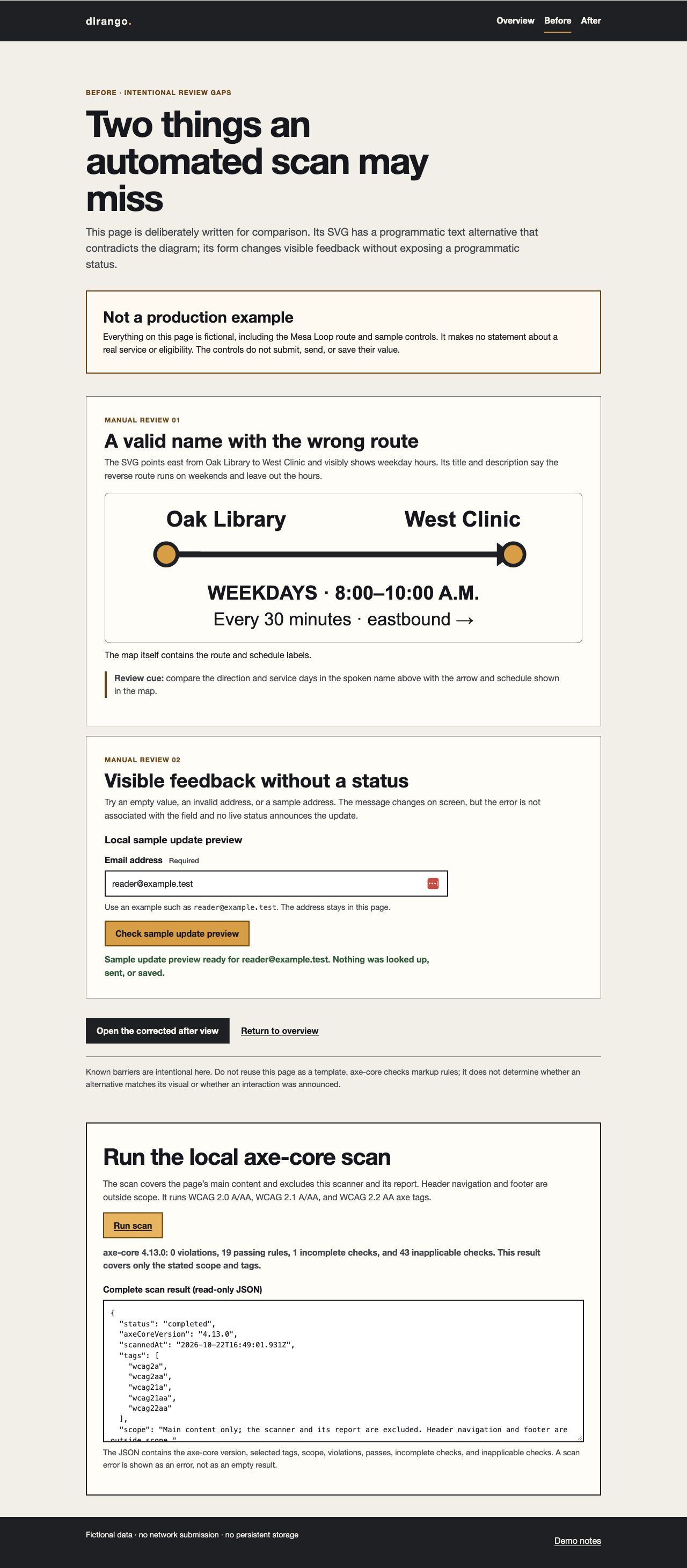
AUD-01: a named graphic gives the wrong information
The fictional Mesa Loop diagram visibly shows Oak Library to West Clinic, eastbound, Monday–Friday, 8–10 a.m., every 30 minutes. The before SVG's programmatic title says the reverse direction on weekends; its description omits the hours.
That is a content-equivalence finding under WCAG 1.1.1, Non-text Content. The presence of a name does not establish that its meaning matches the graphic. Our configured scan did not flag the mismatch; we compared the rendered graphic, the exposed alternative and the fixture's route facts.
The after version uses the same facts in its visible caption and programmatic alternative. This is an excerpt from the actual demo; the drawing primitives are omitted here:
<svg role="img"
     aria-labelledby="after-map-title after-map-description"
     viewBox="0 0 640 200">
  <title id="after-map-title">Fictional Mesa Loop shuttle map from Oak Library eastbound to West Clinic.</title>
  <desc id="after-map-description">The shuttle runs Monday through Friday from 8:00 a.m. to 10:00 a.m., every 30 minutes.</desc>
  <!-- The full demo includes the visible route and schedule drawing. -->
</svg>
Retest evidence: the route fixture, visual labels, title and description agree; the browser accessibility tree exposes the corrected information. The source tests check the actual route facts. Spoken output with a real screen reader remains pending. Do not label that unperformed check passed.
AUD-02: success feedback exists visually but lacks status semantics
Enter reader@example.test and activate the sample check. The before page displays a confirmation without moving focus, but the feedback has no status role or live-region semantics. This is a relevant WCAG 4.1.3, Status Messages case: success/results feedback without a change of context needs to be programmatically determinable.
The after page keeps the status container in the DOM before the action and updates its text. Its actual markup is:
<p class="form-feedback" id="after-form-feedback"
   role="status" aria-live="polite" aria-atomic="true"
   data-form-status></p>
A role alone is not the final test. Trigger the update in the agreed browser/assistive-technology combination, check that the message is conveyed appropriately, and confirm that the task and focus remain usable.
Retest evidence: our keyboard test kept focus on the sample-check button after success, and the new text appeared in the status container. Empty input produced a text error linked through aria-describedby, aria-invalid="true", and focus on the field; correcting the value cleared that invalid state. Those are observed keyboard/DOM behaviors. Actual screen-reader announcements remain pending.
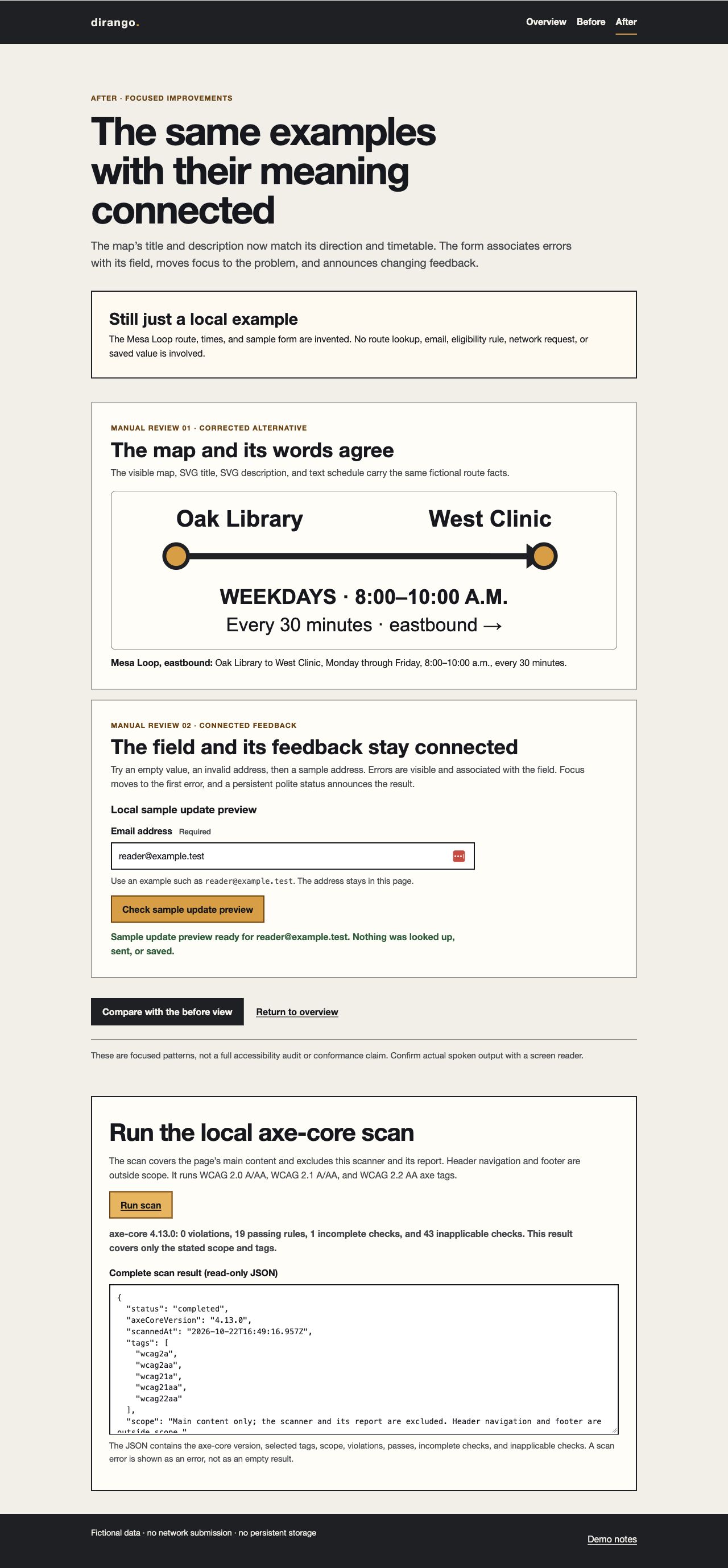
Download accessibility audit source to run locally. The sample is fictional, has no submission or persistent storage, and sends no form values anywhere. Its scan results can differ across browsers, versions, viewports and states; record the environment when you repeat it.
What this issue register would say
- AUD-01, route alternative: content fix implemented; fixture, visual and accessibility-tree checks passed in the local example; screen-reader readout pending.
- AUD-02, feedback: status and field relationships implemented; keyboard/error/success checks passed; browser-plus-screen-reader announcement tests pending.
- SVG contrast review: automated result remains incomplete; exact rendered colors were inspected and calculated for the four labels. Additional contrast conditions remain part of the agreed audit scope.
This is a more useful handoff than calling the page “accessible” because the violation counter is zero.
5. Turn each finding into an actionable issue
A finding needs more than “fix accessibility.” Record:
- A stable issue ID, URL, component and exact state.
- Reproduction steps and the browser/assistive technology used.
- Expected and observed behavior, with evidence.
- Relevant WCAG criterion and the affected user/task.
- Priority, rationale, owner and dependencies.
- Proposed change, revision and retest steps.
- Status, retest result and remaining limitations.
W3C's evaluation report template provides a starting structure for scope, methods and findings. Adapt the issue detail to the people implementing the fixes; do not present an automated export as if it recorded tests nobody performed.
Prioritize by impact and reach
A barrier preventing an important application, purchase or information task deserves attention ahead of a cosmetic improvement. Shared-component issues can affect many journeys; content-specific issues may need an editorial owner rather than a global theme change.
This prioritization approach is practical, but it is not a universal W3C severity scale. Record the criterion and user impact separately from delivery priority. Ten scanner results from one template issue may share a root cause; one broken workflow may matter more than hundreds of minor warnings.
6. Remediate the cause and preserve the task
Identify whether the issue belongs in a reusable component, template, plugin/app integration or content record. Prefer native HTML behavior when it meets the requirement. Adding ARIA does not repair missing keyboard behavior or inaccurate content.
Apply the change in a reviewable environment. Recreate the reported state, inspect the result, and test related uses of the same component. A new error summary should help people recover without losing their input. A repaired text alternative should explain the current graphic, not become stale when its data changes.
Record the implementation revision and evidence. “Developer completed” should mean ready for retest, not automatically closed.
7. Retest the issue and the complete process
Repeat the original reproduction steps with the same stated environment, then test the surrounding task. Check the important alternate states and representative shared-component instances. Rerun automated checks with the recorded configuration; review new warnings rather than comparing scores alone.
Use statuses that distinguish verified behavior from unfinished work:
- Open: the barrier is recorded and reproducible.
- Ready for retest: implementation changed; verification is still required.
- Verified in stated tests: record exactly which checks passed.
- Blocked or partially verified: document missing access, vendor action or pending assistive-technology work.
If only keyboard and DOM checks were performed, do not close a screen-reader-specific test as passed. If a third-party step was inaccessible to the evaluator, describe that limit. Verification should follow the evidence rather than the delivery deadline.
After release, test the affected production journey in an authorized session. Keep regression checks for shared patterns and repeat reviews when content, components or integrations change. Monitoring can flag changes, but manual evaluation still needs to happen periodically.
What should you receive at the end?
At the end, ask for the agreed scope and sample, automated results with review items, manual and assistive-technology coverage, an issue register, implementation evidence and retest outcomes. The summary should make verified work, remaining barriers, exclusions and follow-up clear.
dirango offers website accessibility audits, remediation and recurring review, alongside website governance. Use the project form to share the platform, key journeys, documents and integrations for review.
Need help with your site?
We offer website accessibility. Send us the site and what you need help with, or read more about the service.